Transcript for the nbn Hamton Property Group Case New Devs Case Study video
[Upbeat electronic music plays throughout]
[Narrator]
[Text on screen] nbn connection box upgrade
Hi there. You're about to receive a new nbn connection box, to replace your existing one.
In this short video, we'll explain why it's being installed, what to expect on installation day, and highlight some key features of your new device. Let's dive in.
[Text on screen] Why are we installing a new nbn connection box?
There are a couple of reasons your current nbn connection box is being replaced. It may not support the speed of your chosen plan, or it's being upgraded to improve the internet performance at your premises.
[Text on screen] What to expect on installation day
An nbn approved technician will be on-site for about one hour on the day. However, depending on the installation requirements, it can sometimes take longer.
When your technician arrives, you can always ask to see their ID before giving them access to your premises.
In some instances, for health and safety reasons, we may need to temporarily switch off your power and internet for 30-60 minutes on the day. Please keep your mobile phone handy in case of an emergency.
The new nbn connection box will be installed inside your premises, and in most cases it will be fitted into the same wall enclosure as your current one. If that's not possible, the old nbn connection box will be removed and the new one will be installed approximately in the same location.
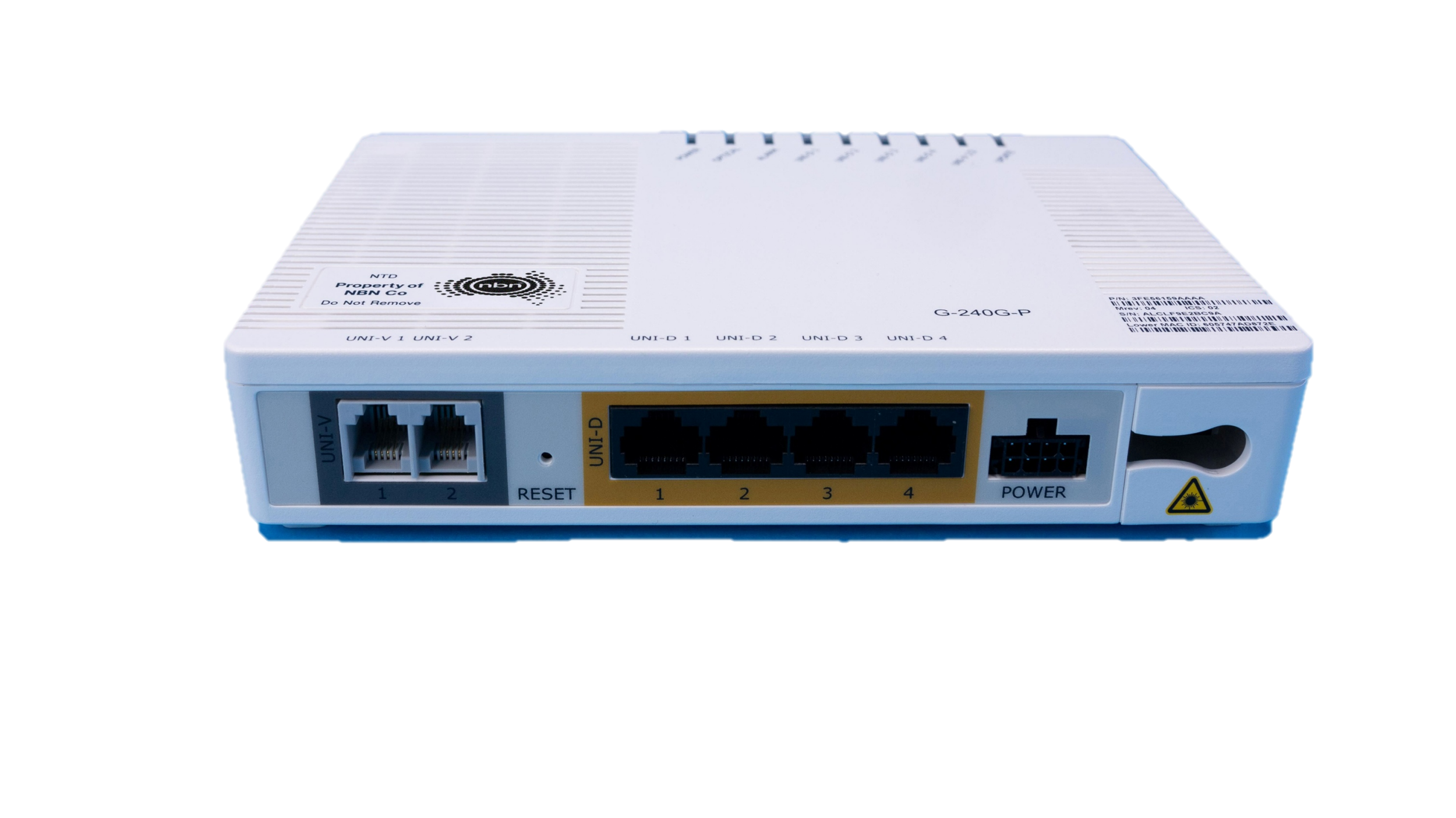
If your existing nbn connection box has a connected home-phone port called UNI V, or a Battery Backup Unit, these older features will be permanently switched off as they aren’t supported on your new nbn connection box.
If you would like to retain these features, your nbn connection box cannot be replaced. Please contact your internet provider to discuss your options.
Once the installation is complete, you should be ready to use your nbn internet connection.
[Text on screen] Let’s get your Wi-Fi router connected
Follow these steps to connect your Wi-Fi router. First things first, let's remove the cover.
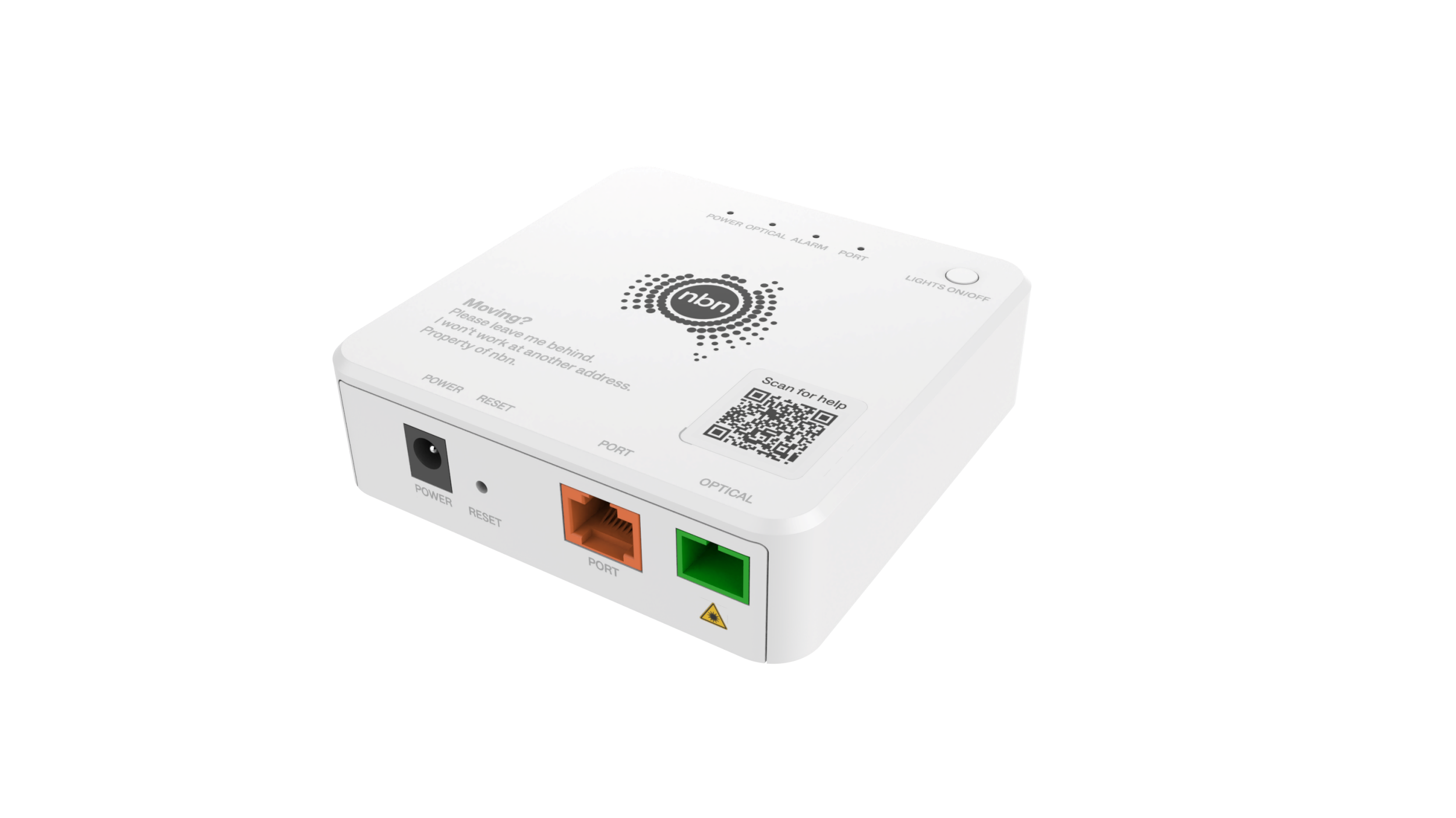
If your nbn connection box looks like this, the cover will be located at the bottom of the device, and can be removed by pressing the indents on the side of the cover and sliding it downwards.
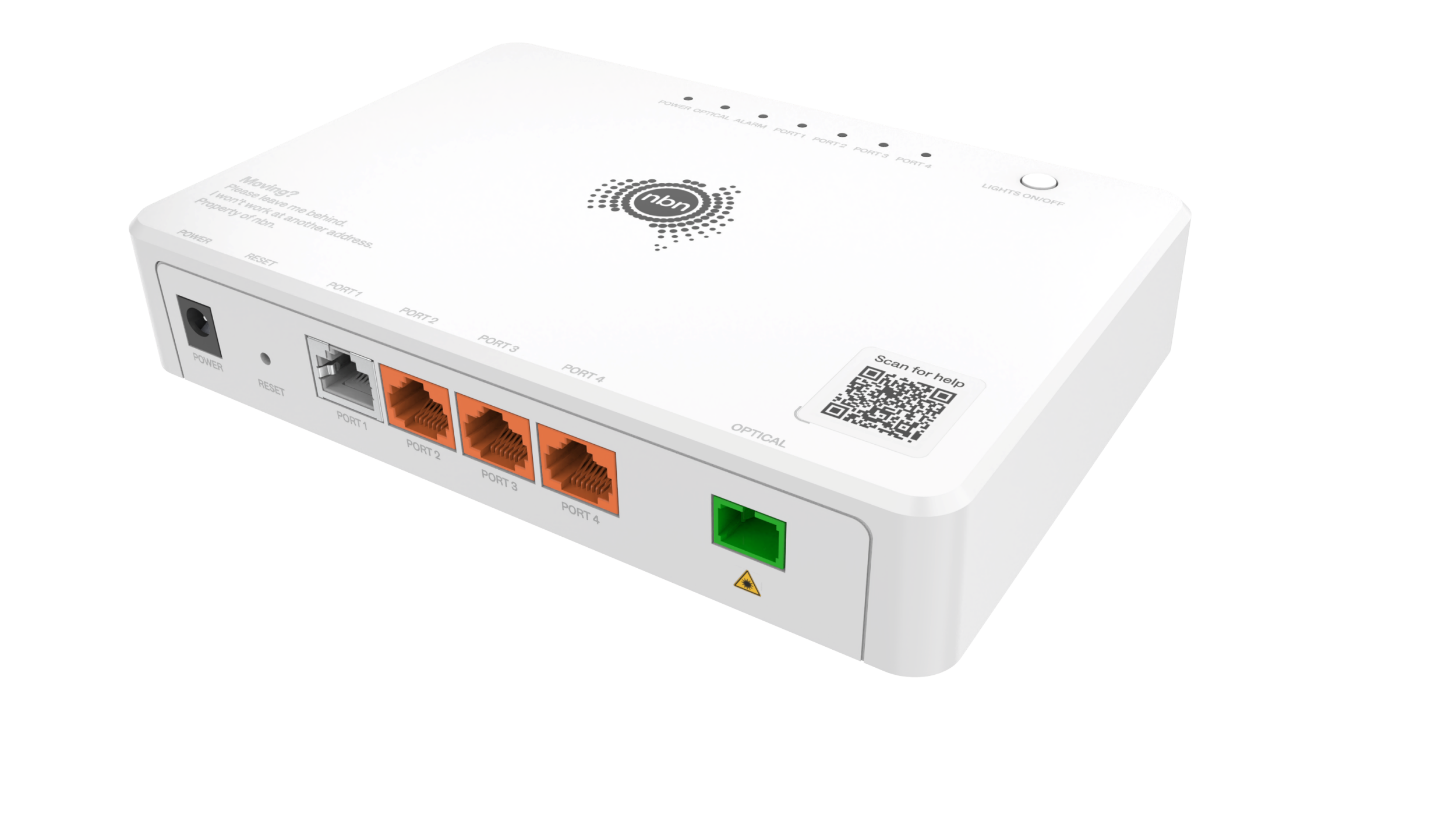
If your nbn connection box looks like this, you can remove the cover by finding the two small clips located at the bottom of the connection box. Press them firmly and lift off the cover.
[Text on screen] The Ports
In most cases, your new nbn connection box will have one Ethernet port to connect your Wi-Fi router. If you have multiple Fibre to the Premises services, nbn will install an nbn connection box with four Ethernet ports instead.
To connect your Wi-Fi router to your nbn connection box, plug your Wi-Fi router into a power point. Then use an Ethernet cable to link it to the nbn connection box via the WAN port on your router.
The lights on your nbn connection box will let you know whether it's working as it should or if there's an issue.
[Text on screen] The Lights
Let's take a look at the lights on your new nbn connection box. How they work and what they mean.
Pressing the Lights ON/OFF button will turn the lights on your nbn connection box on or off, giving you a practical way to minimize the disruption from the flashing lights, depending on where your nbn connection box is located within your home or business.
Green: Everything is working as it should.
Red: There's an issue. If either the optical or alarm lights stay red, contact your internet provider.
No lights: You may have pressed the Lights ON/OFF button, or the power might be disconnected.
Optical light is off: You're not connected to the nbn network. Contact your internet provider for support.
Alarm light is on: This light should always be off. If it’s on, we recommend that you contact your internet provider.
Port light is off: This could mean either: An nbn service has not been ordered or, an nbn service has been ordered, but your Wi-Fi router is not connected to the nbn connection box. Make sure all the cables are securely connected and the Wi-Fi router is receiving power.
If you are still having issues, we recommend that you contact your internet provider.
[Text on screen] Help and Support
If you would like to learn more about your nbn connection box, simply scan the QR code located on the device.
If you need help with troubleshooting your nbn service, your internet provider is your go to for troubleshooting and support.
Once your new nbn connection box is ready to go, we suggest also checking that your in-premises internet equipment is set up to get the most out of your nbn connection.
For more information, visit nbn.com.au/optimise
[Text on screen]
Build with nbn. 2026 nbn co ltd. 'nbn' and nbn logos are trademarks or registered trademarks of nbn co ltd | ABN 86 136 533 741.
[Music ends]
[End of transcript]