
Understanding your setup, features, and lights
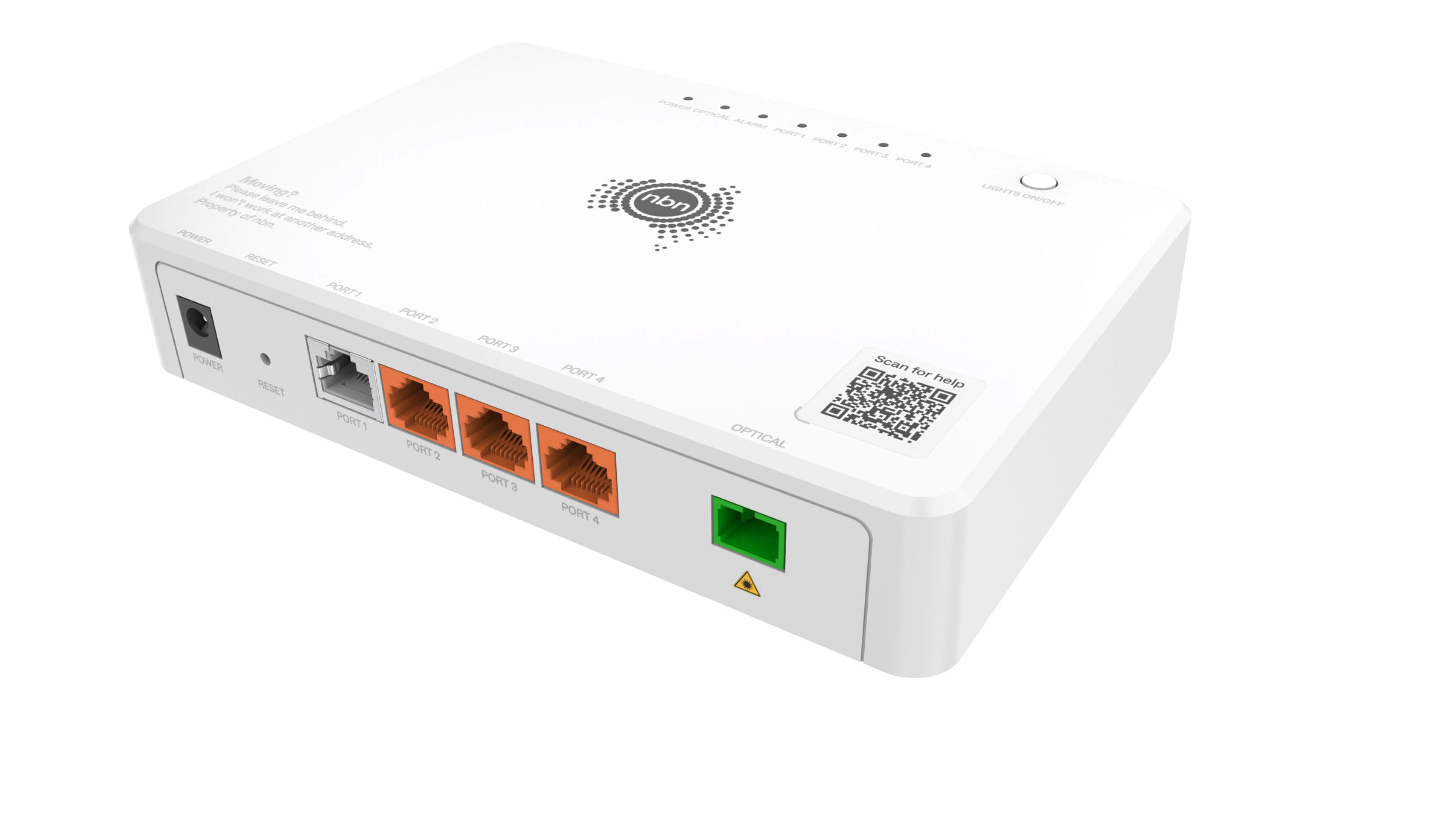
This next-generation Fibre to the Premises (FTTP) connection box helps keep you connected at home or work. It’s compact, supports multi gigabit speeds#* and includes four Ethernet ports – giving you the flexibility to connect up to four different nbn services and Wi-Fi routers, across one or more service providers.
The nbn connection box connects your property to the nbn network. It converts the fibre signal sent along the nbn network into data your Wi-Fi router uses to deliver internet throughout your home, keeping everything connected.
Connect to the internet in three steps
Follow these steps to set up your nbn connection.
1. Sign up to an nbn powered plan
Contact your service provider and sign up to an nbn powered plan. They’ll let you know if you need a new nbn connection box and arrange an installation appointment if required. If you’re upgrading to nbn full fibre, check out what to expect on installation day.
You can then usually start the activation process straight away if you’re using your own Wi-Fi router, or once you receive one from your provider.
Your nbn connection box has four data ports, labelled 1, 2, 3 or 4. Your provider will assign your service to one of these ports. If the assigned port is already in use, contact your provider for help.

2. Remove the cover to connect your Wi-Fi router
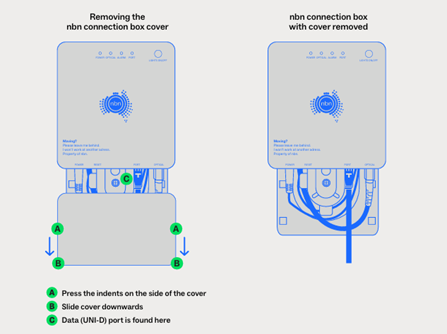
Press the indents on the sides of the cover and slide it downward to access the ports on the connection box. Once you have removed the cover, plug the Ethernet cable from your Wi-Fi router into the port assigned by your service provider.
At times, businesses can have more complex setups and cabling requirements. If this applies to you, contact your provider for assistance.
3. Wait for the network to connect, then reattach the cover
The green ‘Optical’ light will slowly flash while data is transmitting. It will turn solid green once it is connected to the network.
The assigned green ‘Port’ light will flash to show activity between the connection box and your Wi-Fi router.
Once connected, slide the wall mount cover back up into place to protect the cables.
Lights and signals
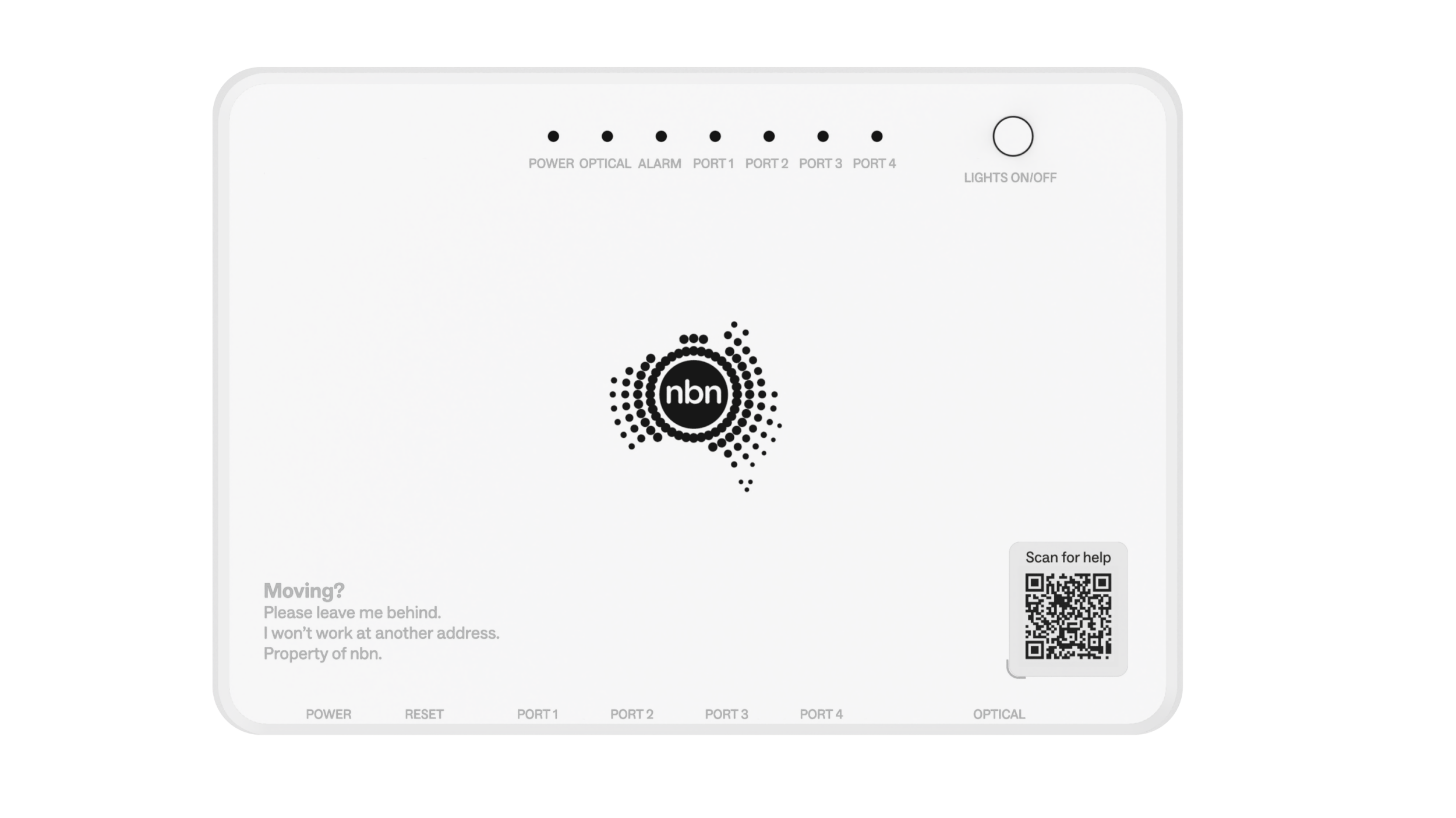
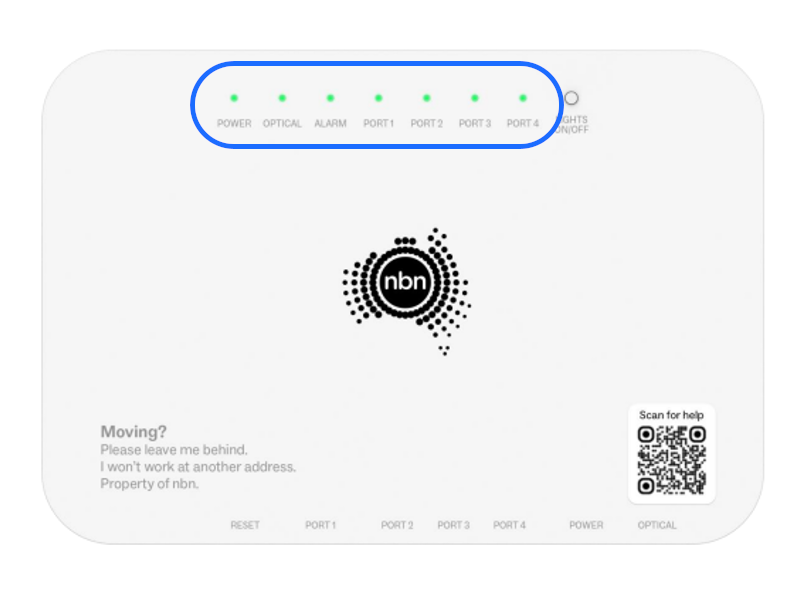
The nbn connection box has four indicator lights and a ‘LIGHTS ON/OFF’ button.
Pressing the ‘LIGHTS ON/OFF’ button switches the lights on and off. It does not affect the connection box’s operation. If troubleshooting, remember to switch the lights back on as they won’t turn back on automatically during issues.
Power light GREEN - solid light
Your power supply is working normally and your nbn connection is ready for use.
Power light GREEN – slow flashing
Your power light will slowly flash green when the connection box is starting up. There is nothing you need to do; the flashing light will switch to a solid green light shortly.
Power light GREEN – fast flashing
Your power light will flash green quickly when the connection box is receiving updates or an upgrade. There is nothing you need to do; the flashing light will switch to a solid green light shortly.
Power light OFF
When your power light is off this means there is no power to your nbn connection box.
Check your power supply is plugged in, switched on, and connected to your nbn connection box. If there is still no power light, contact your service provider.
Optical light GREEN – solid light
Your nbn connection is connected to the nbn network and can receive data.
Optical light GREEN – slow flashing
There is activity on the nbn network connection and data is being transmitted. There is nothing you need to do; the flashing light will switch to a solid green light shortly.
Optical light OFF
When your power light is off this means your nbn connection box is not connected to the nbn network. You will need to contact your service provider for assistance.
Optical light RED
You have lost connection with the nbn network. You will need to contact your service provider for assistance.
Alarm light OFF
Your nbn connection box is operating normally.
Alarm light RED
Your nbn connection box has a fault and is not working normally. You will need to contact your service provider for assistance.
Port lights GREEN – solid light
Your nbn service is connected to the nbn network and can receive data. A solid light means there is currently no activity coming through your connection.
Port lights GREEN – fast flashing
Your nbn service is connected to the nbn network and can receive data. The flashing light means there is activity coming through your connection.
Port lights OFF
When a port light is off it can mean that either:
- A service has not been ordered or activated for this port.
- A service has been ordered but the Wi-Fi router is not connected to the nbn connection box.
Check your Wi-Fi router is correctly connected if you have already ordered an nbn service. If you have not ordered a service, please contact your preferred service provider.
Power light GREEN - solid light
Your power supply is working normally and your nbn connection is ready for use.
Power light GREEN – slow flashing
Your power light will slowly flash green when the connection box is starting up. There is nothing you need to do; the flashing light will switch to a solid green light shortly.
Power light GREEN – fast flashing
Your power light will flash green quickly when the connection box is receiving updates or an upgrade. There is nothing you need to do; the flashing light will switch to a solid green light shortly.
Power light OFF
When your power light is off this means there is no power to your nbn connection box.
Check your power supply is plugged in, switched on, and connected to your nbn connection box. If there is still no power light, contact your service provider.
Optical light GREEN – solid light
Your nbn connection is connected to the nbn network and can receive data.
Optical light GREEN – slow flashing
There is activity on the nbn network connection and data is being transmitted. There is nothing you need to do; the flashing light will switch to a solid green light shortly.
Optical light OFF
When your power light is off this means your nbn connection box is not connected to the nbn network. You will need to contact your service provider for assistance.
Optical light RED
You have lost connection with the nbn network. You will need to contact your service provider for assistance.
Alarm light OFF
Your nbn connection box is operating normally.
Alarm light RED
Your nbn connection box has a fault and is not working normally. You will need to contact your service provider for assistance.
Port lights GREEN – solid light
Your nbn service is connected to the nbn network and can receive data. A solid light means there is currently no activity coming through your connection.
Port lights GREEN – fast flashing
Your nbn service is connected to the nbn network and can receive data. The flashing light means there is activity coming through your connection.
Port lights OFF
When a port light is off it can mean that either:
- A service has not been ordered or activated for this port.
- A service has been ordered but the Wi-Fi router is not connected to the nbn connection box.
Check your Wi-Fi router is correctly connected if you have already ordered an nbn service. If you have not ordered a service, please contact your preferred service provider.
Your connection box ports
Learn where to find the ports on your nbn connection box and what each one is used for.
How your connection box is connected
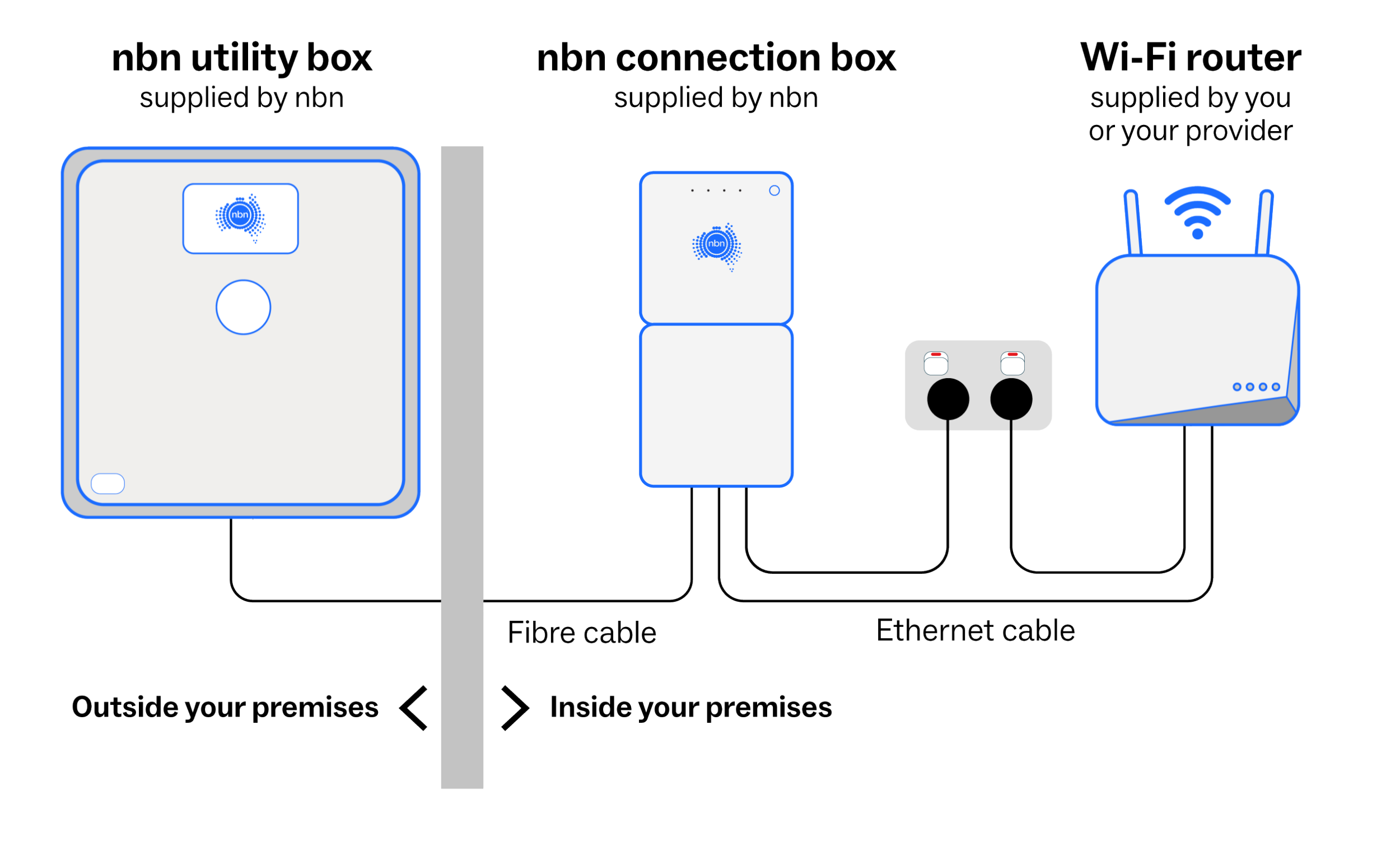
The ports on your nbn connection box connect to your power supply, your Wi-Fi router, and the nbn utility box outside your premises.
How to access your connection box ports
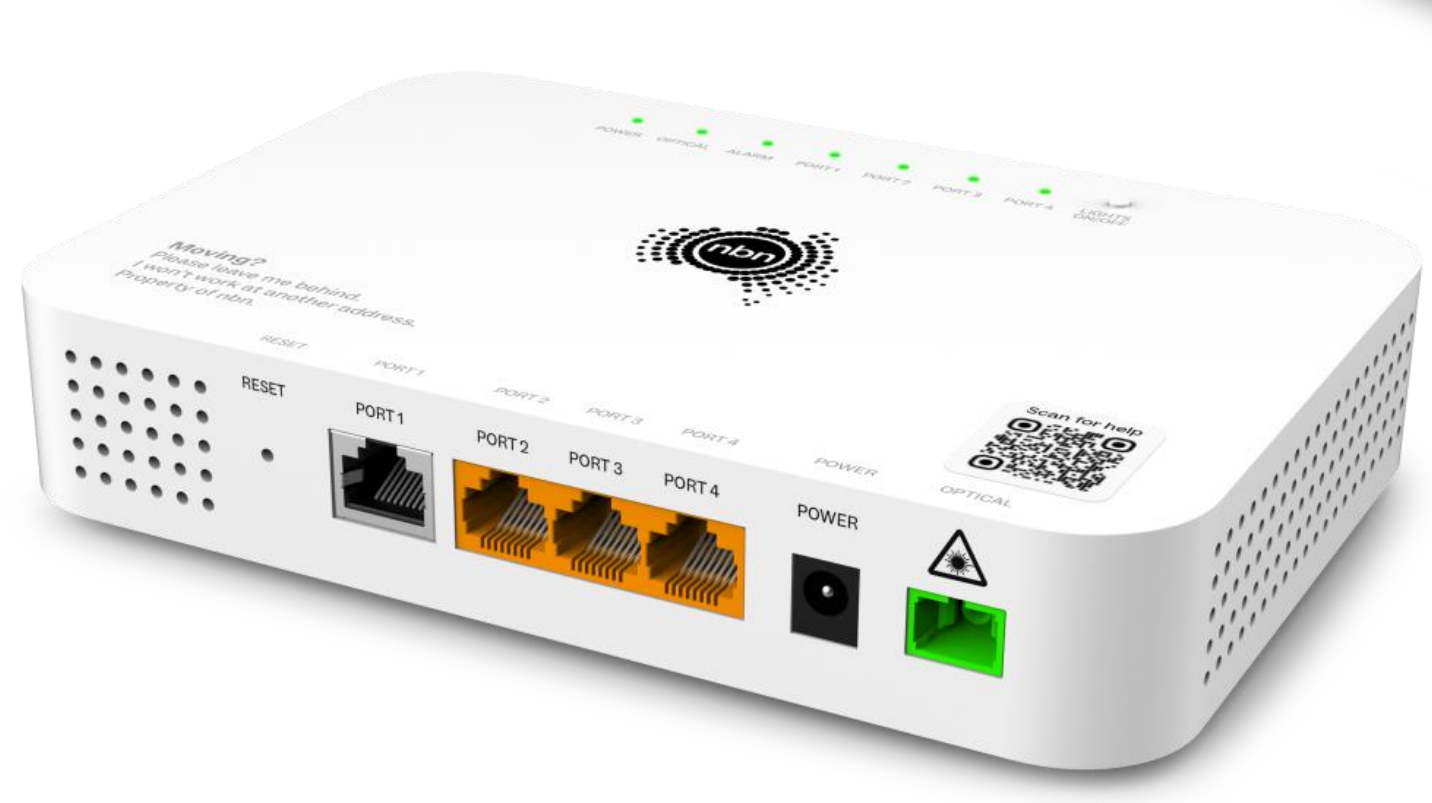
Look at the bottom of your nbn connection box (which is inside the cover mounted to the wall). You will see a row of ports. The order of the ports may look different depending on the type of nbn connection box that’s been installed.
What your connection box ports do
- POWER: The port for connecting the power supply unit to the connection box.
- PORTS 1-4: The assigned port used to connect the nbn connection box to your Wi-Fi router. Each port is reserved for a separate internet service. Port 1 is grey, and Ports 2-4 are orange.
- OPTICAL: The port used to connect the fibre optic cable that brings the internet service into the nbn connection box.
- RESET: A small paperclip- activated Reset button that should only be used if your provider instructs you to. This button has two functions:
- Short press (under 5 seconds): restarts the connection box.
- Long press (over 5 seconds): resets the device to factory default settings.
Frequently asked questions
Seeking more information or checking if something isn’t working as expected? Explore below for easy troubleshooting and maintenance tips for your nbn connection box.
First, check that everything is powered on and connected:
- Check if the power light on your connection box is on to see if your connection box has power.
- Make sure all your cables are plugged in securely and your power points are switched on.
- Confirm your Wi-Fi router is plugged into the correct Ethernet port assigned to the service you are trying to connect.
Electrical equipment like Wi-Fi routers can sometimes stop working. Turning the power off and on can reset things.
It’s also possible the Ethernet cable is faulty and not connecting to your Wi-Fi router properly – you may want to test a different cable.
If your internet service is new or has never worked before, contact your service provider to check if the service has been activated correctly. If it has worked in the past, refer to our other troubleshooting steps or contact your service provider.
You can do a simple test to find out if there is an issue with your Wi-Fi router or the connection box.
Test your nbn connection box by connecting an Ethernet cable directly from the active port on the connection box to a laptop or desktop computer. Do not connect to the Wi-Fi router.
If you are then able to connect to your service, the issue is likely to be with your Wi-Fi router.
If you purchased your Wi-Fi router or are using an older router from a previous service, you may want to consider upgrading your device. If your service provider supplied your Wi-Fi router, contact them to discuss your options.
The nbn connection box in your premises should require very little maintenance if properly cared for:
- Make sure you don’t touch or unloop the fibre optic cable; even unplugging it can damage the connection and may need a technician to repair.
- Don't use water or chemicals to clean your internet equipment; a dry cloth will be sufficient to keep things dirt and dust free.
- If you are renovating, don’t permanently cover or paint your nbn connection box or power supply.
- Lastly, make sure that your power supply is constantly plugged in unless you are away for an extended time or instructed by your provider. No power means no internet.
To help look after the external nbn equipment on your property:
- Keep branches and shrubs away from the fibre optic cable and nbn utility box.
- Don’t permanently cover or paint the nbn utility box.
- Always check where any underground cables are located before digging to avoid accidental damage to them. It is best to always contact Dial Before You Dig 1100. Lodging an enquiry is free of charge. You may incur costs if underground cables are accidentally damaged, and experience lengthy unplanned service disruptions until the damaged cables are repaired.

*Your experience, including the speeds actually achieved, depends on the configuration over which services are delivered to your premises, whether you are using the internet during the busy periods, and some factors outside of nbn's control (like your equipment quality and set-up, chosen broadband plan, age of device(s), and/or how your provider designs its network).
#Service availability including timing will depend on phone and internet providers offering nbn Hyperfast and is subject to service qualification.