
Understanding your setup, features, and lights
Our first-generation connection box delivers reliable full fibre performance via Fibre to the Premises (FTTP) – keeping your home or business connected while you do great things online.
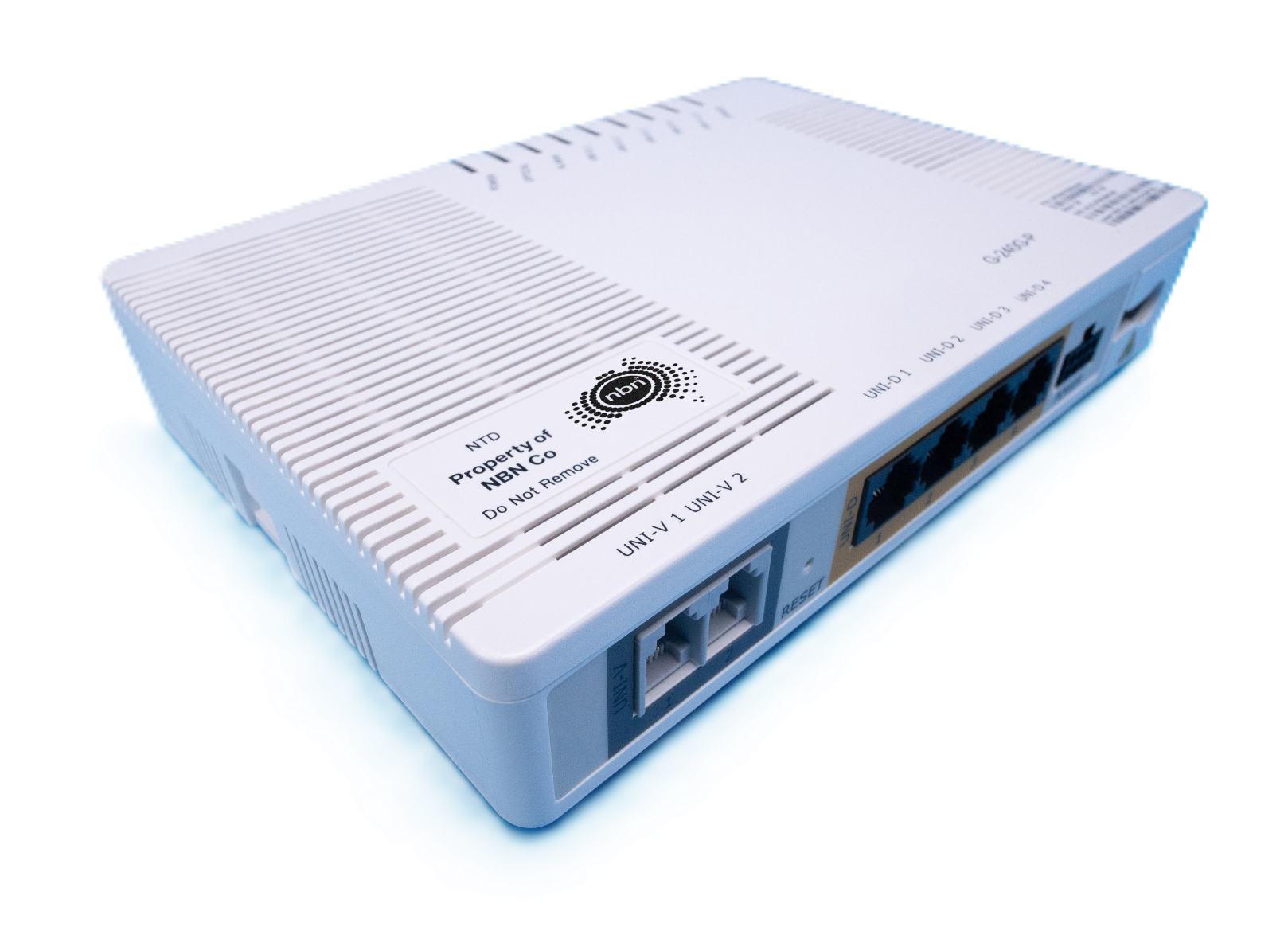
The nbn connection box connects your property to the nbn network. It converts the fibre signal sent along the nbn network into data your Wi-Fi router uses to deliver internet throughout your home, keeping everything connected.
Connect to the internet in three steps
Follow these steps to set up your nbn connection.

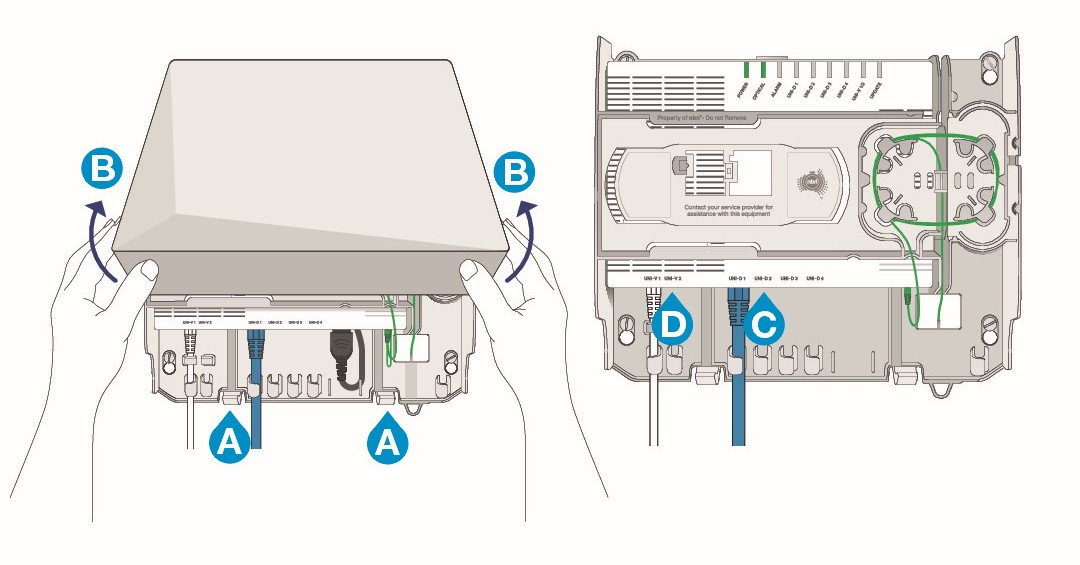
3. Wait for the network to connect, then reattach the cover
The green ‘OPTICAL’ light will slowly flash while data is transmitting. It will turn solid green once it is connected to the network.
The assigned green ‘PORT’ light will flash to show activity between the connection box and your Wi-Fi router.
Once connected, place the cover over the base then lightly guide the cover down and back into place to protect the cables.
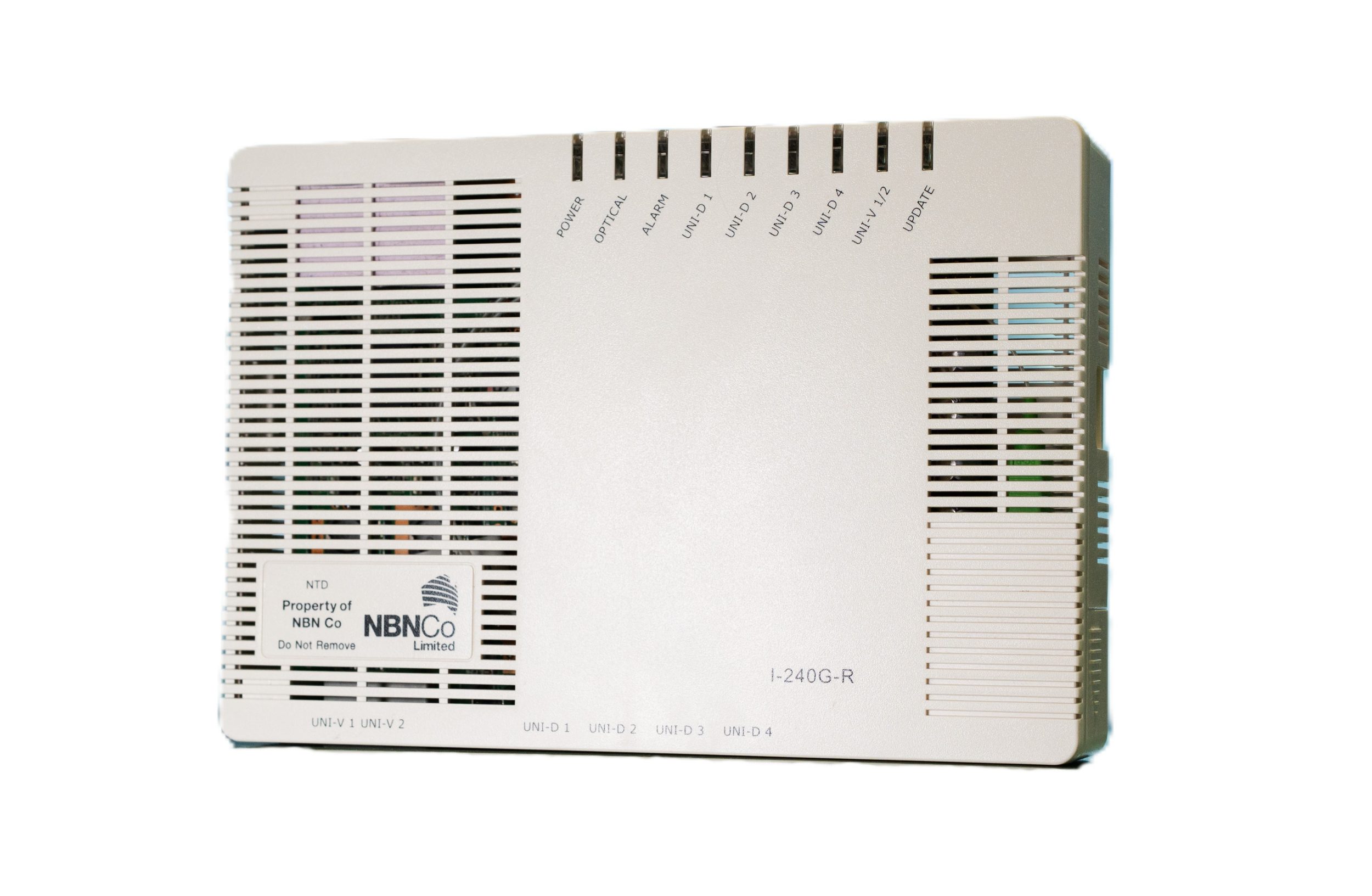


Power light GREEN – solid light
Your power supply is working normally and your nbn connection is ready for use.
Power light GREEN – slow flashing
Your power light will slowly flash green when the connection box is starting up.
There is nothing you need to do; the flashing light will switch to a solid green light shortly.
Power light RED – solid light
Your connection box is operating on battery backup power.
If there is a mains power failure, you will only have services over the nbn for a period of up to five hours.
Power light OFF
When your power light is off, this means there is no power to your nbn connection box.
Check your power supply is plugged in and switched on, and is connected to your nbn connection box.
If there is still no power light, contact your service provider.
Optical light GREEN – solid light
Your nbn service is connected to the nbn network and can receive data.
Optical light GREEN – flashing
There is activity on the nbn network connection and data is being transmitted.
Optical light OFF
When your power light is off, this means your nbn connection box is not connected to the nbn network.
You will need to contact your service provider for assistance.
Optical light RED
You have lost connection with the nbn network.
You will need to contact your service provider for assistance.
Alarm light OFF
Your nbn connection box is operating normally.
Alarm light RED
Your nbn connection box has a fault and is not working normally.
You will need to contact your service provider for assistance.
Port lights GREEN
The Wi-Fi router connected to this UNI-D port is configured to support 10 or 100 Mbps Ethernet.
No action is required.
Port lights GREEN – flashing
The Wi-Fi router connected to this UNI-D port is configured to support 10 or 100 Mbps Ethernet.
No action is required.
Port lights AMBER
The Wi-fi router connected to this UNI-D port is configured to support traffic up to 1000 Mbps (1 Gbps).
No action is required.
Port lights AMBER – flashing
The Wi-fi router connected to this UNI-D port is configured to support traffic up to 1000 Mbps (1 Gbps).
No action is required.
Port lights OFF
When a port light is off it can mean that either:
- A service has not been ordered or activated for this port
- A service has been ordered but the Wi-Fi router is not connected to the nbn connection box.
Check your Wi-Fi router is correctly connected if you have already ordered an nbn service.
If you have not ordered a service, please contact your preferred service provider.
Voice (UNI-V) light GREEN – solid
One or more telephones are off the hook or in use.
No action is required.
Voice (UNI-V) light GREEN – flashing
One or more telephones have been off the hook for more than one hour.
Check if someone in your household is using the phone.
If not, check to see if any of your handsets have been left off the hook by accident.
Voice (UNI-V) light OFF
You don’t have an active phone service using this port.
Update light GREEN
Your power light will flash green quickly when the connection box is downloading software.
No action is required.
Update light RED
Your update light will turn solid red when your connection box has failed to download a software update.
You will need to contact your service provider for assistance.
Update light OFF
No updates are in progress and your connection box is up to date.
No action required.
Your connection box ports
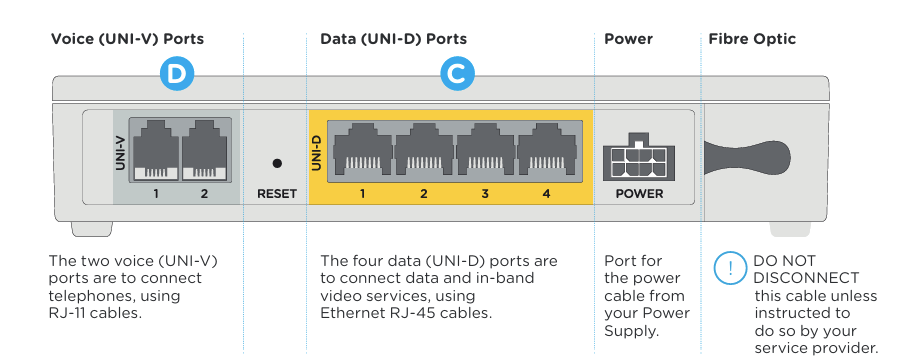
To access the connection box ports, remove the cover and look at the underside of your nbn connection box. It should look like the following image with a row of ports.
What your connection box ports do
- Voice (UNI-V) 1 and 2: The assigned port used to connect a legacy telephone service, like a standard analogue corded or cordless telephone. Since June 2024, nbn has stopped providing new services connected through the voice (UNI-V) interface. If you require a new telephone service, please contact your preferred service provider to talk about your options.
- Data (UNI-D) 1-4: The assigned port used to connect the nbn connection box to your Wi-Fi router. Each port is reserved for a separate internet service. All four ports are orange.
- Power: The port for connecting the power supply unit to the connection box.
- Fibre Optic: The port for the fibre optic cable that carries the internet signal. Do not disconnect this cable unless instructed to do so by your service provider.
Your nbn supplied equipment
The following diagrams show the three main setups and explain what each piece does.
If you’d like to keep your internet connection running during a power outage, please contact your service provider to discuss battery backup options that may suit your needs.
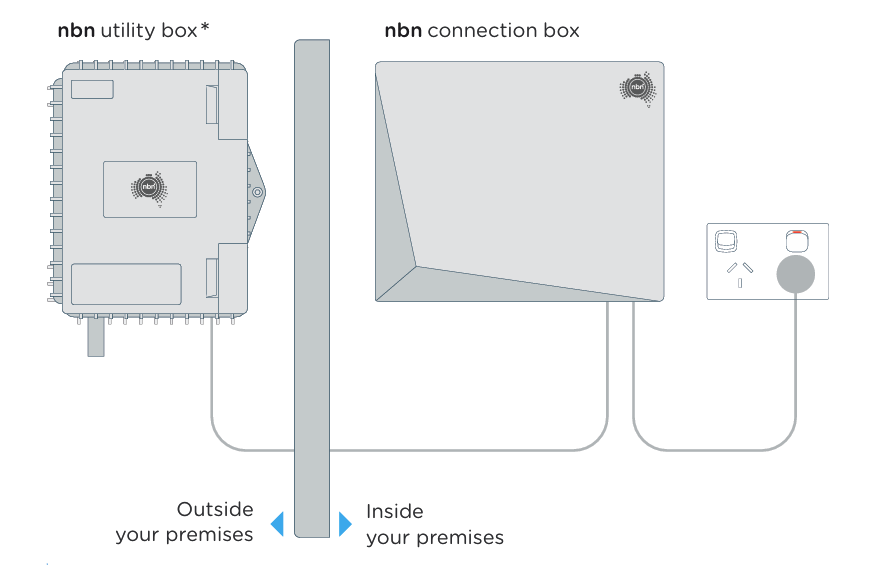
nbn connection box with cover and standard power supply
This setup has:
- A utility box installed on an exterior wall of your premises. It connects to your connection box.
- An FTTP connection box installed on an interior wall of your premises. It connects to the utility box and is also plugged into a power source.
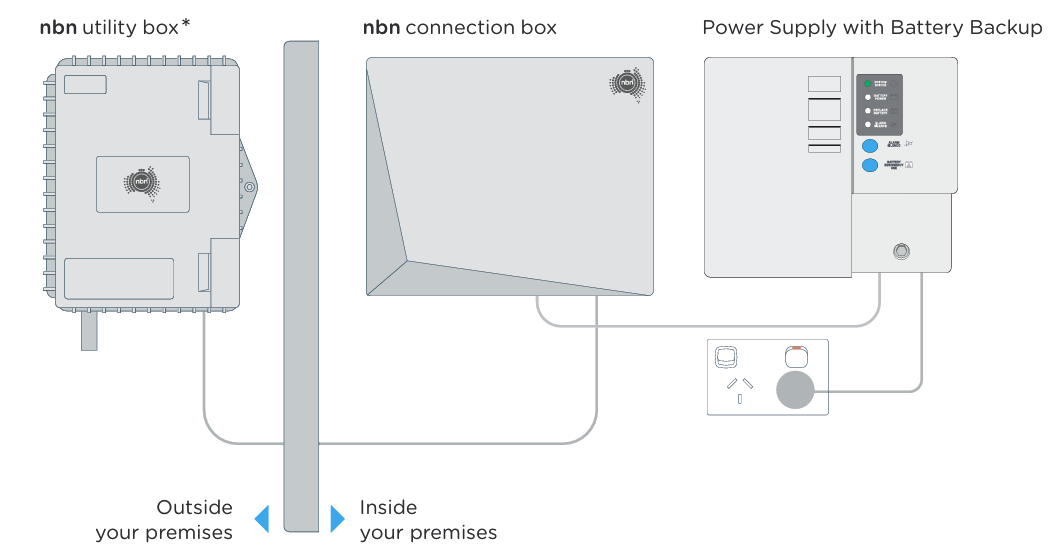
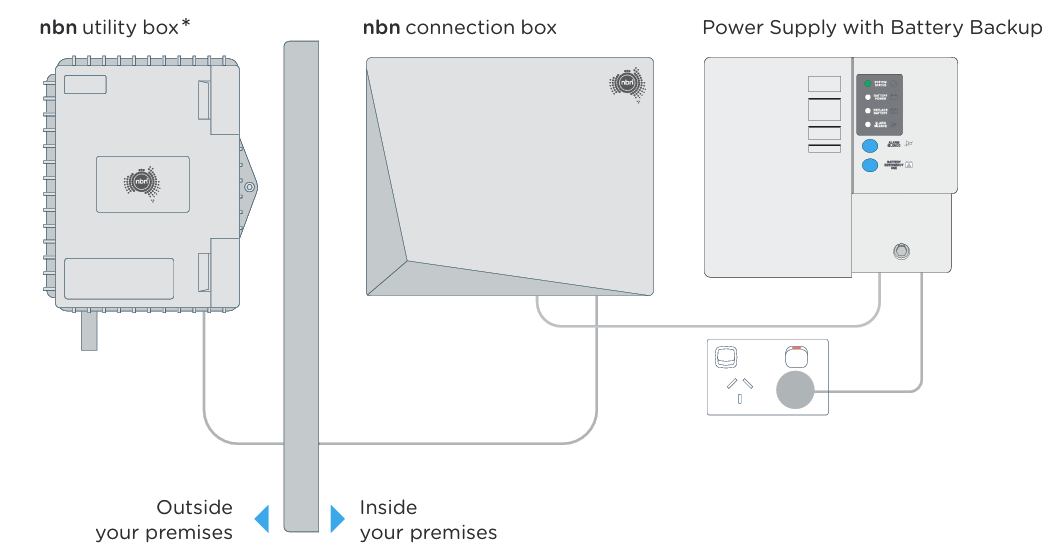
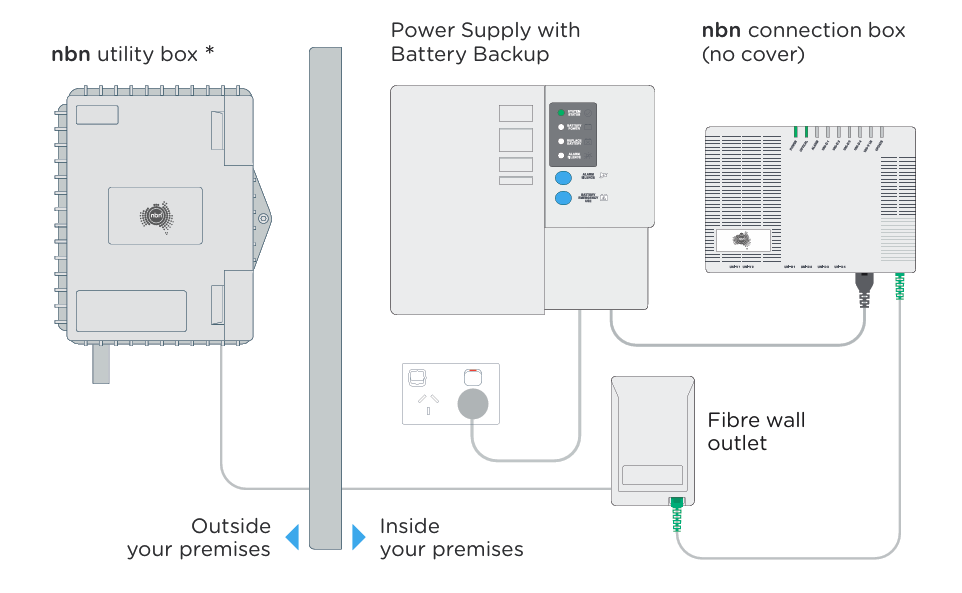
nbn connection box no cover, fibre wall outlet, and power supply with optional battery back up
This set up has:
- A utility box installed on an exterior wall of your premises.
- A fibre wall outlet.
- An FTTP connection box (no cover) installed on an interior wall of your premises. It connects to the fibre wall outlet and the Power Supply.
- A Power Supply with optional Battery Backup. It connects to your connection box and a power plug.
Frequently asked questions
Seeking more information or checking if something isn’t working as expected? Explore below for easy troubleshooting and maintenance tips for your nbn connection box.
First, check that everything is powered on and connected:
- Check if the power light on your connection box is on to see if your connection box has power.
- Make sure all your cables are plugged in securely and your power points are switched on.
- Confirm your Wi-Fi router is plugged into the correct Ethernet port assigned to the service you are trying to connect.
Electrical equipment like Wi-Fi routers can sometimes stop working. Turning the power off and on can reset things.
It’s also possible the Ethernet cable is faulty and not connecting to your Wi-Fi router properly – you may want to test a different cable.
If your internet service is new or has never worked before, contact your service provider to check if the service has been activated correctly. If it has worked in the past, refer to our other troubleshooting steps or contact your service provider.
You can do a simple test to find out if there is an issue with your Wi-Fi router or the connection box.
Test your nbn connection box by connecting an Ethernet cable directly from the active port on the connection box to a laptop or desktop computer. Do not connect to the Wi-Fi router.
If you are then able to connect to your service, the issue is likely to be with your Wi-Fi router.
If you purchased your Wi-Fi router or are using an older router from a previous service, you may want to consider upgrading your device. If your service provider supplied your Wi-Fi router, contact them to discuss your options.
The nbn connection box in your premises should require very little maintenance if properly cared for:
- Make sure you don’t touch or unloop the fibre optic cable; even unplugging it can damage the connection and may need a technician to repair.
- Don't use water or chemicals to clean your internet equipment; a dry cloth will be sufficient to keep things dirt and dust free.
- If you are renovating, don’t permanently cover or paint your nbn connection box or power supply.
- Lastly, make sure that your power supply is constantly plugged in unless you are away for an extended time or instructed by your provider. No power means no internet.
To help look after the external nbn equipment on your property:
- Keep branches and shrubs away from the fibre optic cable and nbn utility box.
- Don’t permanently cover or paint the nbn utility box.
- Always check where any underground cables are located before digging to avoid accidental damage to them. It is best to always contact Dial Before You Dig 1100. Lodging an enquiry is free of charge. You may incur costs if underground cables are accidentally damaged, and experience lengthy unplanned service disruptions until the damaged cables are repaired.

*Your experience, including the speeds actually achieved, depends on the configuration over which services are delivered to your premises, whether you are using the internet during the busy periods, and some factors outside of nbn's control (like your equipment quality and set-up, chosen broadband plan, age of device(s), and/or how your provider designs its network).
#Service availability including timing will depend on phone and internet providers offering nbn Hyperfast and is subject to service qualification.